From MS Teams to Liman – familiar interface, European hosting
Liman is the European MS Teams replacement – same feature depth, familiar interface, no retraining. Switch at low migration cost: either via parallel operation (Teams + Liman) or in phases towards full de-migration. Hosted in the EU, no CLOUD Act.
How the transition works
-
Use in parallel
Liman connects to Teams calendar, Teams chats and channels. You can migrate step by step and keep both worlds connected – without giving up Teams immediately.
-
Familiar experience
Video conferencing, breakout rooms, whiteboard and chat – many features you know from Teams are available in Liman.
-
More sovereignty
Open protocols, EU hosting and E2EE. Less vendor lock-in, better control over data and infrastructure.
Two paths: parallel operation or de-migration
You can use Liman in parallel with Teams first (same M365 data, one additional interface) or plan a step-by-step de-migration from the start. Both paths can be combined: many start with parallel operation and only move to reducing Teams in phase 2 or 3.
Parallel operation: Teams and Liman at the same time
In parallel operation, your data stays in Microsoft 365 (Exchange, Teams, Planner). Optionally in parallel: Exchange SE and SharePoint Server on-prem alongside Graph. Liman is used as an additional interface for meetings and – after connection – for chat and channels. The Teams app can continue to be used or gradually take a back seat.
Steps for starting parallel operation
- 1
Set up Liman and connect M365
Liman instance (hosted or on your side) with connection to your Microsoft 365 tenant. Calendar (Exchange), Teams chats and channels, and optionally Planner are connected. Users sign in with the same identities (e.g. Azure AD / Entra ID).
- 2
Run meetings in Liman
New meetings or selected appointments are scheduled and held in Liman. Participants use the Liman link instead of the Teams link. Appointments can remain in the same Exchange/Teams calendar – no double maintenance.
- 3
Use chat and channels in Liman (optional)
Once Teams chats and channels are connected, users can view and use the same conversations and channels in Liman. The Teams app can become unnecessary for these users; others can continue to work in Teams.
- 4
Gradually reduce Teams (optional)
After a stabilisation period, you decide whether to limit Teams use to certain scenarios or adjust licensing. Full exit from Teams is possible but not required – many stay in parallel operation permanently.
Phase plan: step-by-step de-migration
If you want to not only use Liman in parallel but replace Teams in the long term, a phase plan is recommended. Each phase can span several weeks or months; the boundaries are flexible.
Phase 1: Meetings in Liman
Focus on video meetings. Calendar and identity stay in M365; meetings are scheduled and held in Liman.
- Connect Liman to M365/Exchange calendar and identity
- Pilot teams use Liman for internal and selected external meetings
- Switch invitation links and meeting room logic to Liman (or keep hybrid)
- Gather feedback, provide support and training
Phase 2: Chat and channels in Liman
Teams chats and channels are connected in Liman. Users can have the same conversations in Liman; the Teams app becomes optional for day-to-day use.
- Enable connection of Teams chats and channels in Liman
- Extend pilot to more teams or the whole organisation
- Define policies: where is Teams still used, where only Liman?
- Use files and tabs (e.g. Planner, WebDAV) in Liman channels
Phase 3: Reduce or phase out Teams
Teams is only used for clearly defined exceptions or fully replaced. M365 remains the source for email, calendar, Planner and identity; Liman is the central interface for communication.
- Decide: which scenarios (if any) remain in Teams?
- Licence and admin adjustments with Microsoft (e.g. Teams licences)
- Communicate to all users: Liman as standard for meetings and chat
- Uninstall Teams app or only provide for exceptions
Full de-migration: what to consider
If you want to fully replace Teams, email, calendar, files (SharePoint/OneDrive) and identity typically remain in Microsoft 365. Only the communication layer (meetings, chat, channels) moves to Liman.
-
Data stays in M365
Exchange calendar, Teams chat history (where connected) and Planner data stay in Microsoft 365. Liman displays and uses them; a full export from Teams to another platform is only needed if you fully discontinue Teams and no longer want display in Liman.
-
Identity and SSO
User authentication continues via Azure AD / Entra ID. Single sign-on for M365 and Liman – no duplicate identity management.
-
Training and adoption
Training and clear communication reduce uncertainty. Many users find the Liman interface familiar (calendar, chat, channels, meetings); the transition is often easier than expected.
Decision guide: parallel or de-migration?
The following overview helps with classification.
Parallel operation
Liman in addition to Teams. Data in M365, one more interface for meetings (and optionally chat). Ideal for testing, pilot teams or if you don’t want to reduce Teams immediately.
Step-by-step de-migration
Clear phases with the goal of reducing or replacing Teams. Ideal if you want less dependence on Teams and more sovereignty (E2EE, EU, open protocols) in the long term.
Liman in practice
Microsoft 365 calendar, Teams channels and meetings – in one interface.
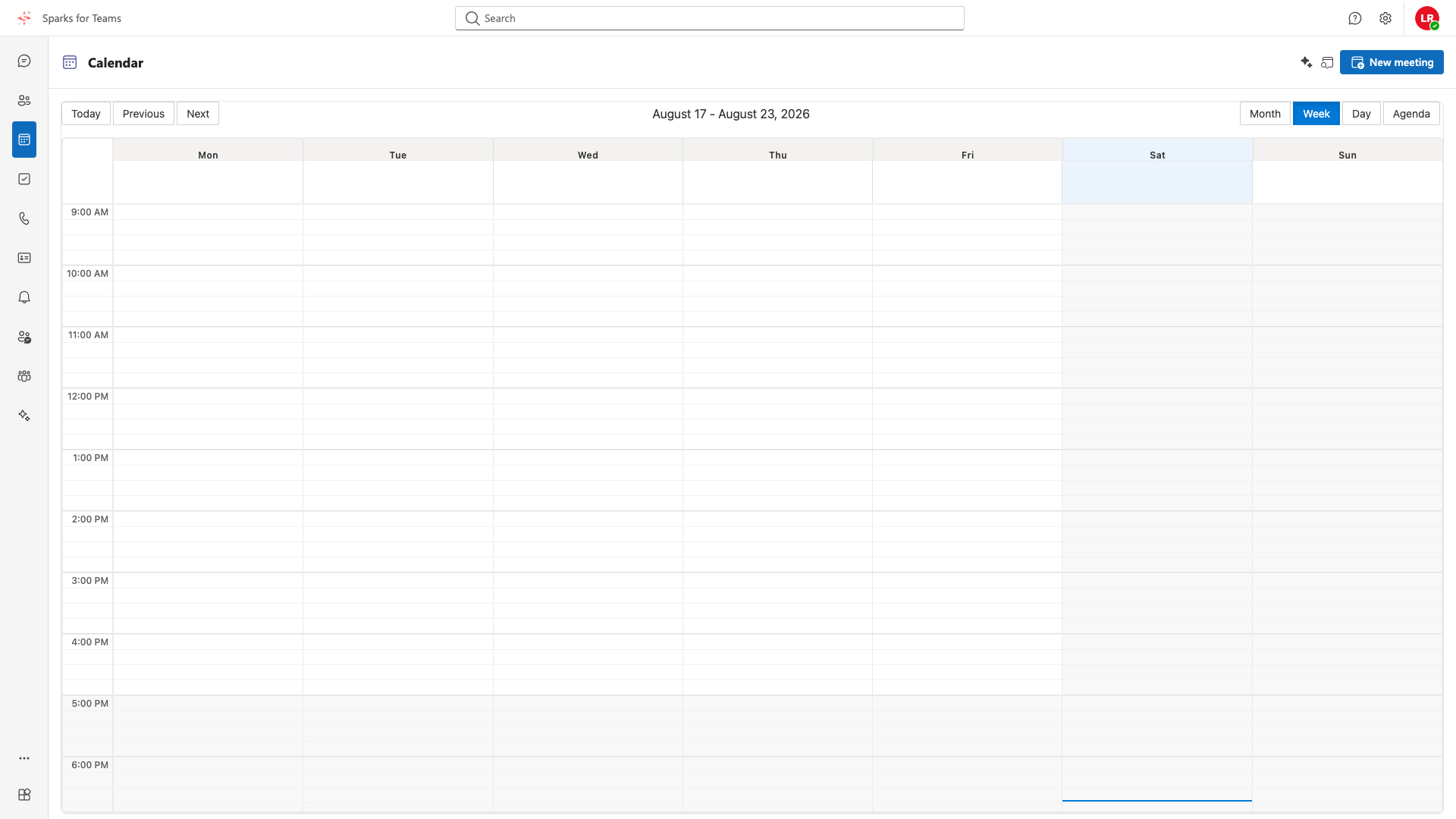
Calendar view in Liman – appointments from connected Microsoft 365 and Teams calendars.
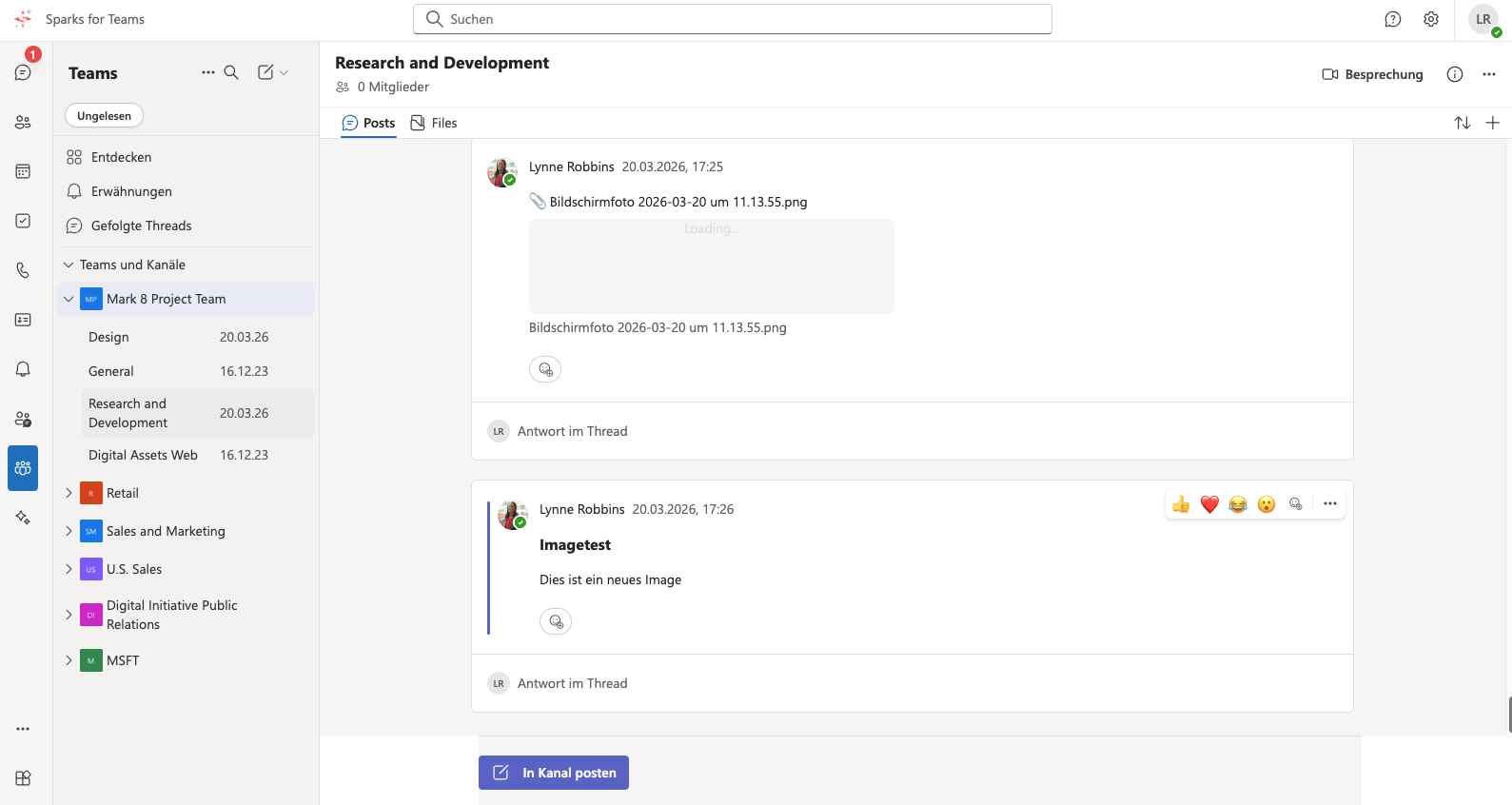
Teams channels and conversations directly in Liman, without switching apps.
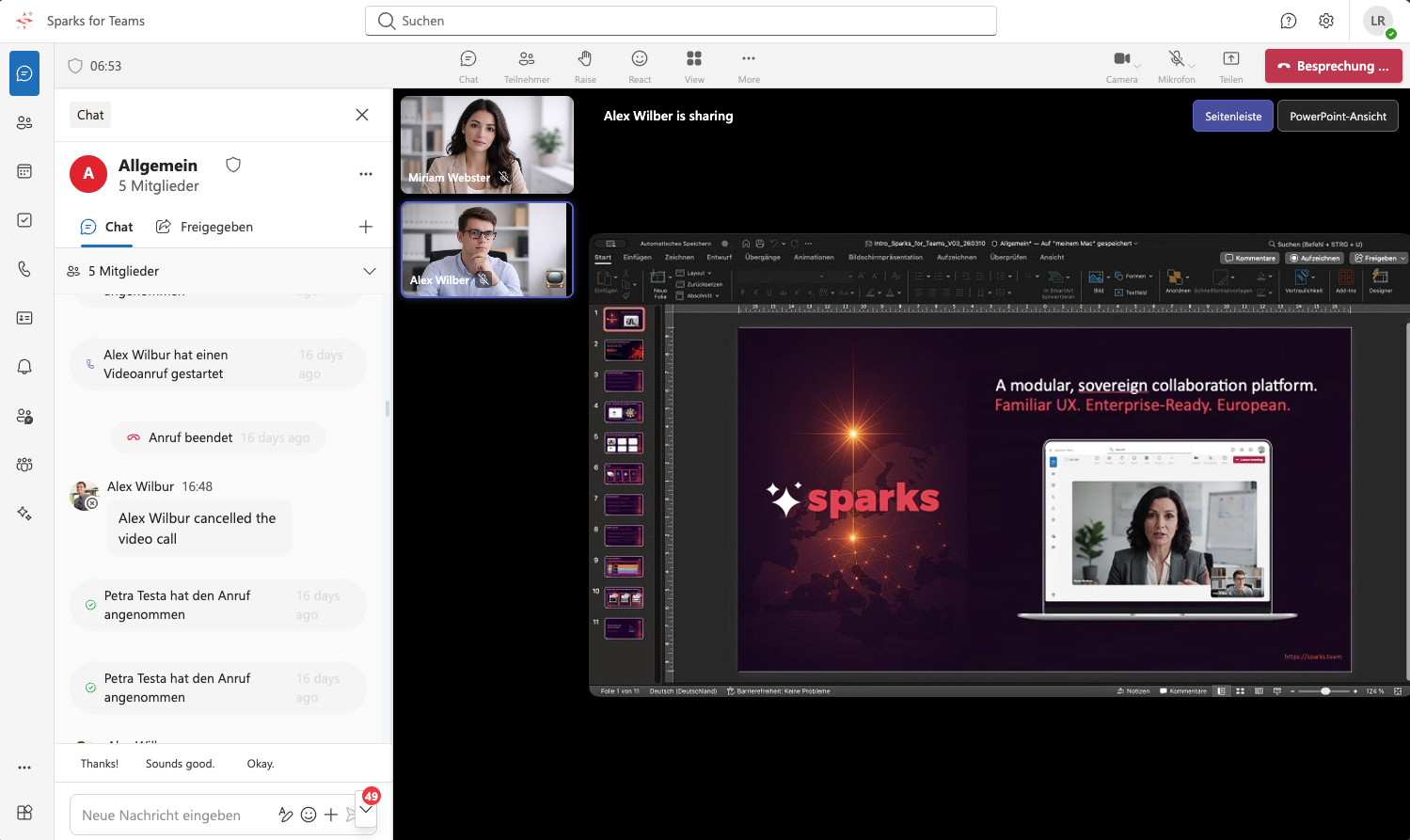
Video meeting with participants, chat and screen sharing.